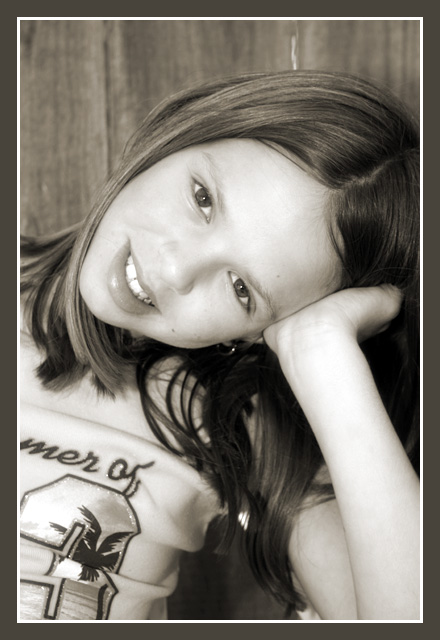
My ten year old daughter, she enjoys having pictures taken of her. I took quite a few of her and her sister, had a hard time choosing.
Converted to Black and White then back to RGB, adjusted saturation in color mode to make it sepia toned.
Added a bit of a diffusion filter.
Statistics
Place: 51 out of 135 Avg (all users): 5.7512 Avg (commenters): 6.3889 Avg (participants): 5.6465 Avg (non-participants): 5.8421 Views since voting: 1361 Votes: 213 Comments: 18 Favorites: 0
at first notice the border distracts me...the photo itself is very nice...I like the coloring you chose as well as the pose...she looks very comfortable and happy...
wow... wow... wow.. What a fantastic portrait! I really love it. The expression of the girl is fantastic. Focus is good. The choice of b&w was a fantastic choice and the light is good, too. Congrats of a fantastic work. It´s my favourite picture of this week. 10
Very pretty. For my taste, the head is tilted a little too far and the writing on the shirt ditracts from her. Back ground is great and so is the tone. BOL
I guess Taylor won't have to complain that you use Hailey too much for contests anymore. ;) I remember this punkin from the Off-center (i think) challenge. She's as adorable as ever, and you've done a great job catching her personality on camera (what's that, innocence? sincereity? i don't know...something). Anyway, love it Paige. great job.
This is not only a cute capture it is a fairly well done portrait. In color it might actually be better as my main nits are related to skin tone and texture. While this capture skirts around with having blown out sections it maintains good solid representation of the depth and texture of the hair, eyes and shirt. The skin on the face lacks some definition, however, between the brows and the hairline, on the subject's right cheek and the chin. The subject's arm also loses some definition around the wrist. One thing that might actually help this while still maintaining the monochromatic look is to go into Channels in Photoshop (or similar program); select only the Green channel and choose the whole photo (click on the green channel and then choose Select | All); now select all the channels by clicking the RGB selection and then go back to the Layers tab. Create a new layer; select the newly created layer and chose Edit | Paste (or CTRL-V) to paste the Green channel over the top of the RGB version. Now you can change the Blend mode and the Opacity to bring out some definition in the skintones while keeping the monochromatic look to the image (you'll probably find that somewhere around 10% opacity inserts enough definition without giving too much of a hue to the image). This edit is allowed with the Advanced editing rules in place. Good subject and good capture.
A great shot. I love the pose and the expression. It looks like you really captured the subject having a good time. Also, I like that the smile doesn't look forced. I love the tones and the overall composition. Good luck!






 Add photograph to your favorites
 Add photographer to your favorites


 Photographer found comment helpful.


