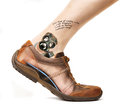
I'd like to try putting my client's logo above the ankle for this orthotic catalogue cover. I have the logo AI file. Does anybody know of 'any how to' resource, or other info on how to make something look like a tatto?
I did a quick attempt at it using Liquify. The problem, I find, with Liquify, is that it only shows the layer you're working on, so you have to remember where the leg is you're trying to bend the tattoo around.
I also tried the "Displacement" thing in the tutorial, but it's useless for my file, at least.
Burn it to darken it up. Then use the sponge and desaturate at about 20%. This should give it a good color. You need to fix up the writing though, make sure the logo is readable even on the hot spots of the leg. I played with it, but it was missing too much detail for me to really do any good for readability.
Burn it to darken it up. Then use the sponge and desaturate at about 20%. This should give it a good color. You need to fix up the writing though, make sure the logo is readable even on the hot spots of the leg. I played with it, but it was missing too much detail for me to really do any good for readability.
btw: Love the toe!!! It's so cute!
LOL, it's my wife's toe, and I had to desat the polish too, what a pain in the neck. I actually did a Google image search on toenails in the hopes of just pasting something over it. But I gave up after looking at dozens of diseased toenails, and thousands of "Camel-toes", if you know what I mean. ;-)
What I'm really after is a way to deform the flat logo around the leg. The liquify tool doesn't let me see the layer with the leg on it, only the logo.
Came across this and went mmmm never thought of trying this before... now I have something new to play with... thanks everyone! I hope you get this done for your client such a good idea! ~D~
I'm wondering if a bit more skin texture would help.
The leg picture seems to have been smoothed a lot, so applying a tattoo is going to seem plastic unless you put it over some texture. Perhaps the best bet would be applying the tattoo before post processing the leg. Another option would be to apply the tattoo to the original, post process that, and apply the result to the leg as you have it now.
I could be way off track, but it's just a thought.
I think Medoomi might be onto something here - the tattoo looks a little too perfect at the moment - as does the leg, so one or the other needs a little more texture. You could always try redoing this as is - but then scratching the tattoo up slightly with a grunge brush - not a lot - but just enough to suggest it is over something.
Alternatively you go for the very PS'd look and sell it as 'plastic fantastic'
Okay, Slippy, here we go... Tattooing in Photoshop 101
Get the image you want to use for the tattoo into the image you want tattooed. After dragging it over onto a NEW LAYER, Press Ctrl+T and right click in the transform box that appears. Choose warp. Position the tattoo over the leg as desired. Now, add a layer mask or use the eraser at a low opacity and soften the shape a bit. Go over the inside and make sure you leave those defined lines on the outside alone. Next, to to Filter>Noise>Add Noise and add at 10%. Then, Filter>Blur>Gaussian Blur and apply it at .5%. Flatten and be HAPPY ;)
I did a quick attempt at it using Liquify. The problem, I find, with Liquify, is that it only shows the layer you're working on, so you have to remember where the leg is you're trying to bend the tattoo around.
I didn't see any specific answers to this, so should like to point you towards the "Show Backdrop" checkbox within the Liquify screen. At least, it should be there.