You make the same typo I make all the time when writing about this: typing "ration" instead of "ratio." Maybe typing when hungry has something to do with it : )
Otherwise a helpful write-up. There are other ways to do some steps (like with the crop tool), but these methods will certainly work fine.
Lyn... generally a well written tutorial. You cover aspect ratio well. Good job!
An area that you might have wanted to say more about is how to scale up for better dpi resolution for larger print sizes - 12 X 8, 13 X 19, 16 X 20, 20 X 24 etc. Mostly there is not aenough data in the original image for larger print sizes with sufficient resolution to support 300 dpi.
Older versions of image editing software generally do not do a very good job of scaling dpi up to the larger standard print sizes without looking digital or require funky processes to get there. Often people buy inexpensive packages to do that for them because it is easier, faster and generally does a better job.
btw... if you wanted to use a lizard picture for an example you could have used mine... LOL
GeneralE: Looks like I need a spell checker that knows what I meant to write.
faidoi: I have tried to do this using the crop tool, but I thought it required you set the resolution as well, which resamples the image.
stdavidson: I have seen other tutorials that cover upsizing fairly well. This one //www.dpchallenge.com/tutorial.php?TUTORIAL_ID=8 does a very good job. I see a lot of questions in the forum to the effect of "Why do I have to crop my image to print at 8x10?" I guess the add on to this would be to continue with the upsizing after the aspect ratio is set. Oh, and nice lizard, btw.
Many thanks - a useful overview for the beginner I am.
Can you help me with a question. I am struggling to get my pictures within the 150kb limit. The only ways I know to get within it is to crop tighter (not a good plan when looking to edit correctly) and to reduce resolution. Can I do anything else?
In Photoshop when you save it gives you an option to save to a certain quality - I usually save mine to 10 (out of 12) and that brings down the file size. Don't know it works in Paint Pro wotsit tho!
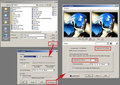
Paintshop Pro workflow for re-sizing is ...
- Reduce the Psp image to 640pixels on the longest side.
- Save As -> Options
- Run Optimizer, you'll see two thumbnails of your image old/new
- Set compression, start at 7
- The optimizer will calculate the new file size and display it underneath the new thumbnail.
- Just keep changing the compression value until you get below 153,000bytes
- OK -> OK
Brett
Uh, this thread's about print sizes, not resizing for challenge entries ... : )
Many thanks for the help (even if the question is in the wrong Thread!) I thought it may be something to do with compression but wasn't sure. I kept reading about "save for web" which confused me. Now I can enter more pictures but I fear it may be some time before I treaten the ribons I will keep trying. Thanks again
I am scanning old negatives that are 2 1/4" square format into digital images. Problem: Getting a 4x6 picture without compromising any of the square image of the original. Please advice.
I just add extra "Canvas" to one side, to bring the image up to a 3:2 aspect ratio. Most digital images are not proportional for a 4 x 6 either (they end up 4 x 5.4), so I do this with almost all my uncropped prints; I put little copies ("wallet prints") in the excess space like this:
With a square image to start with, you can print a 4 x 4 and two 2 x 2 images on each 4 x 6, like this:
I am new to DPChallenge. The problem that I have been having is when I add a photo to my portfolio and choose the option "sell your print on DPC Prints" I receive the message "Your printable file is not large enough to meet the minimum DPI of any of the print sizes available for this aspect ratio."
My image is 480 x 640 pixels, which translates to an aspect ratio of 1.33:1. Can anyone help me with this situation please? I am currently using a program called GIMP until I get Photoshop for my computer. Thanks
I am struggling to get my pictures within the 150kb limit. The only ways I know to get within it is to crop tighter (not a good plan when looking to edit correctly) and to reduce resolution. Can I do anything else?
If it is relevant I am using Paint Shop Pro
Here's a screenshot with some how-to info that I did a while back, using PSP 12. It's the same procedure as mentioned by Kiwishotz.
As mentioned earlier this is intended for fitting an image to challenge limits, not for resizing for print.